
If you're looking for government contracts for bid, you probably start your morning the same way every other struggling small business contractor does.
You log into SAM.gov. You type a keyword like "Cybersecurity" or "Software Development" into that big search bar. You hit Enter.
And then you drown.
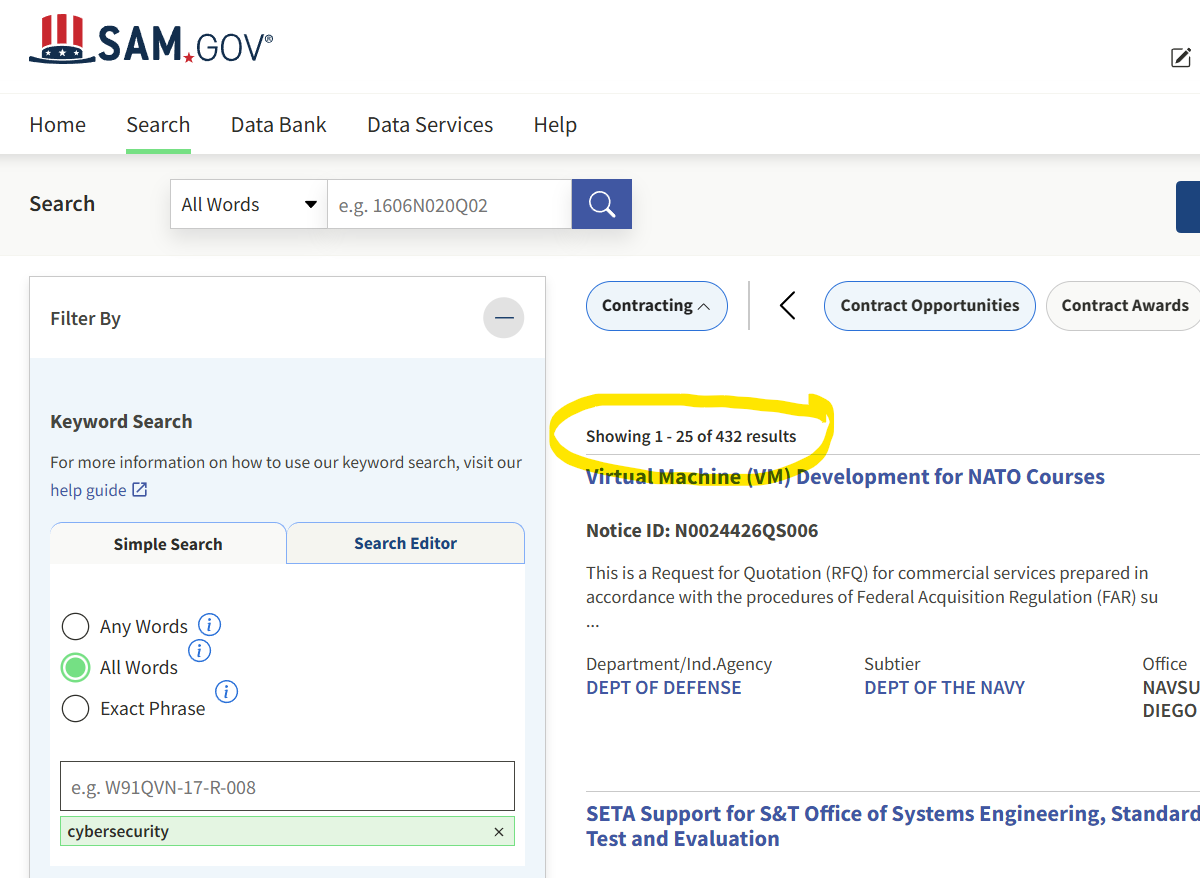
You get 400+ results. Most are old or totally irrelevant. By the time you find one decent lead, your coffee is cold and you have wasted 45 minutes of your prime brainpower. This is called the "Slot Machine" method of business development. You keep pulling the lever, hoping a winner drops out.
The top 1% of small business hunters don't play the slots. They don't even pay $500 a month for those "premium" bid platforms that just scrape government data and sell it back to you. They build a Free Vending Machine. They don't spend their day searching for opportunities. They automate the process so the work finds them.
Here's the 10 minute setup to turn SAM.gov from doom-scrolling into a highly curated automated daily feed for free. No prior SAM.gov experience required.
Back to Basics (of SAM.gov search)
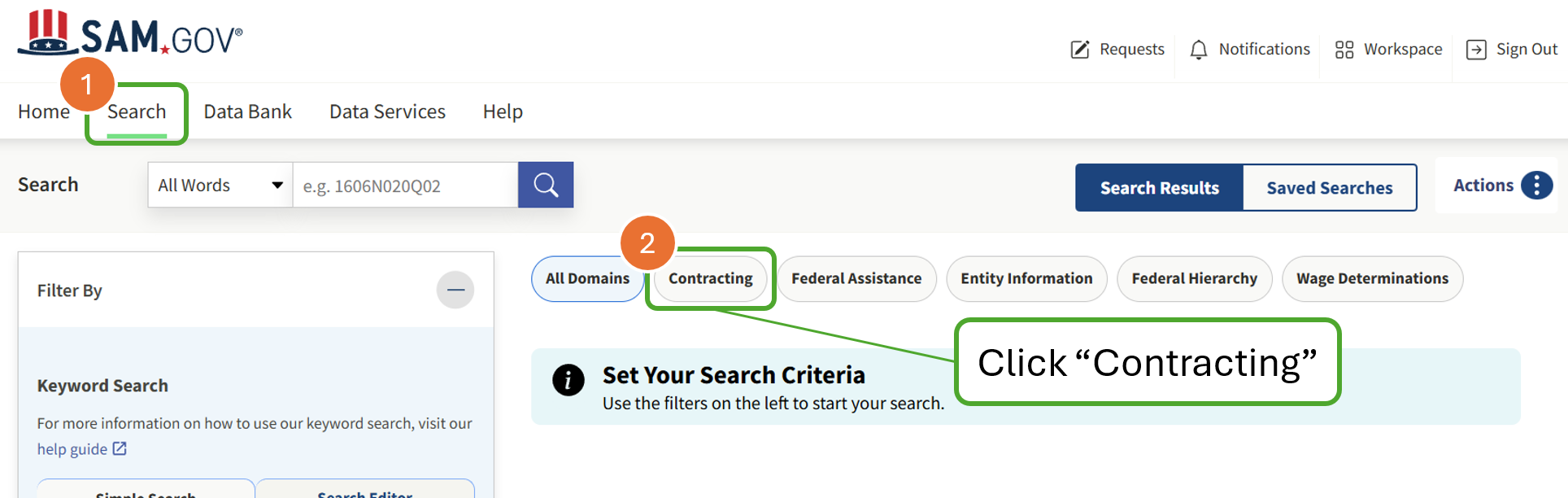
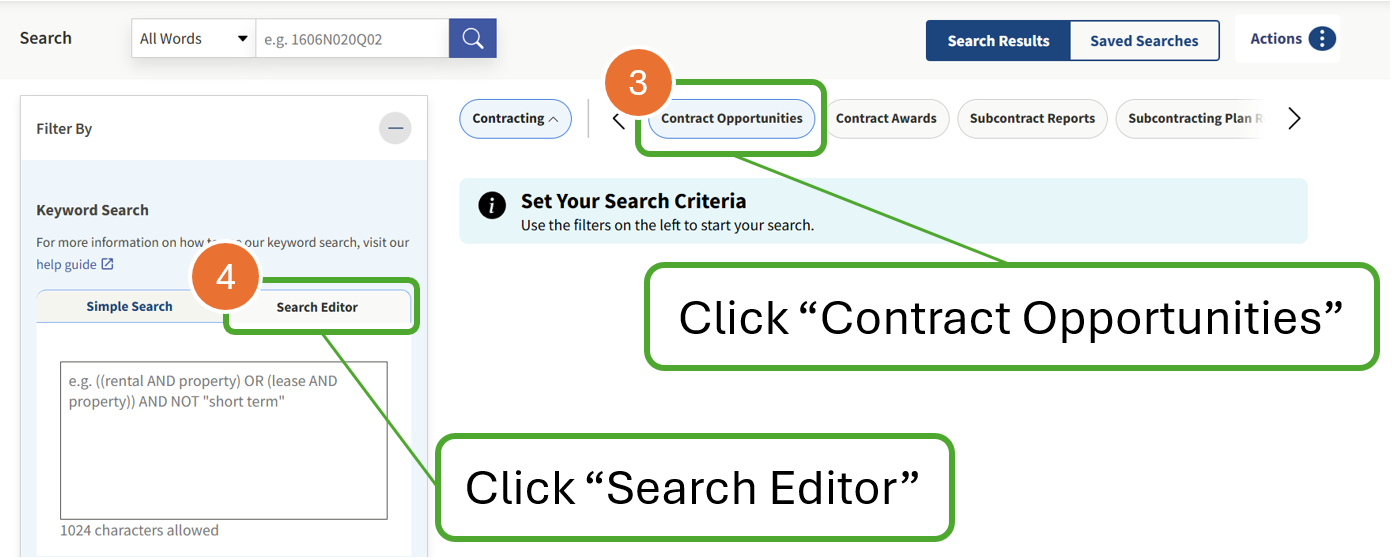
Navigate to the Contract Opportunities search and we'll walk through everything you need to set it up for automation.
Remember, the SAM.gov search matches text across all text fields in an Opportunity.
We'll even teach you how to exclude keywords using the NOT operator in the Search Editor to filter out poor contracts for bid.
The "Reverse Search" (Stop Guessing)
Most contractors get stuck because they rely on keywords. Keywords are a trap. They are entirely dependent on whether a Contracting Officer chose the right words for a title that day. If an officer labels a cloud project as "Technical Support," your "Cloud Computing" keyword search will never see it.
The secret is to stop chasing keywords and start looking at your business identity aka your NAICS Code. The North American Industry Classification System (NAICS) is how the government decides who is even allowed to play.
If you're not searching by NAICS, you're missing opportunities.
Step 3: The Hunter's Trick: Start with inclusive NAICS searches
Most businesses have five or six NAICS codes, but usually only one or two are the "Sweet Spot" where the money is actually moving. Here is how you find yours.
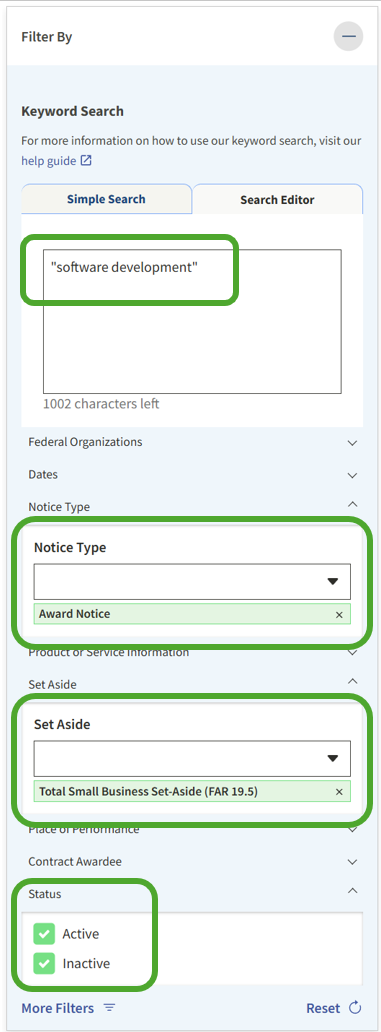
- Search for a project you have already won or one you really want to win.
- Filter your results by "Award Notices" only. This shows you real deals where the government actually spent money.
- Click on the most recent awards and look at the NAICS Code listed on the page.
You might find that while you registered under 541511 (Custom Programming), the contracts you want are actually being awarded under 541512 (Computer Systems Design). Add that higher-volume 541512 NAICS as your primary filter. Now you're looking exactly where the money is flowing.
Pro Tip: Check both "Active" and "Inactive" Status boxes. Sort Results by either "Relevance" or "Updated Date."
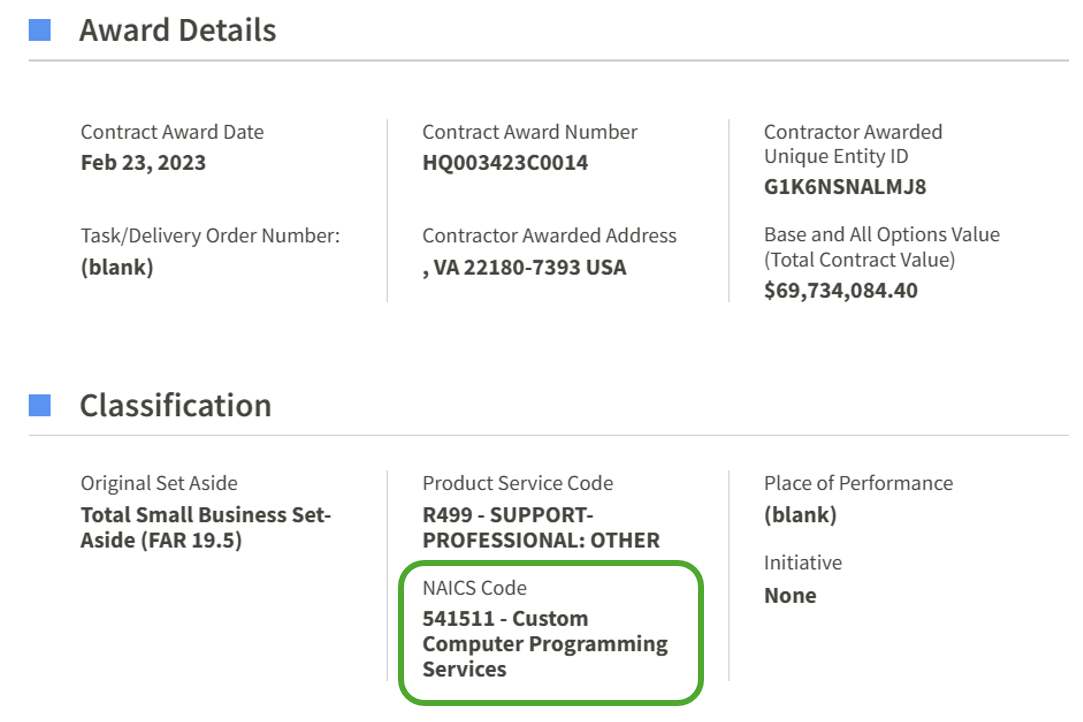
Rank your NAICS codes to prioritize your opportunity searches.
Set the "Tripwire" (The Autopilot Feed)
You don't have time to log in every day and run manual searches. You need to weaponize the notification system that is already built into SAM.gov for free.
Step 5: Here's a search playbook you can copy:
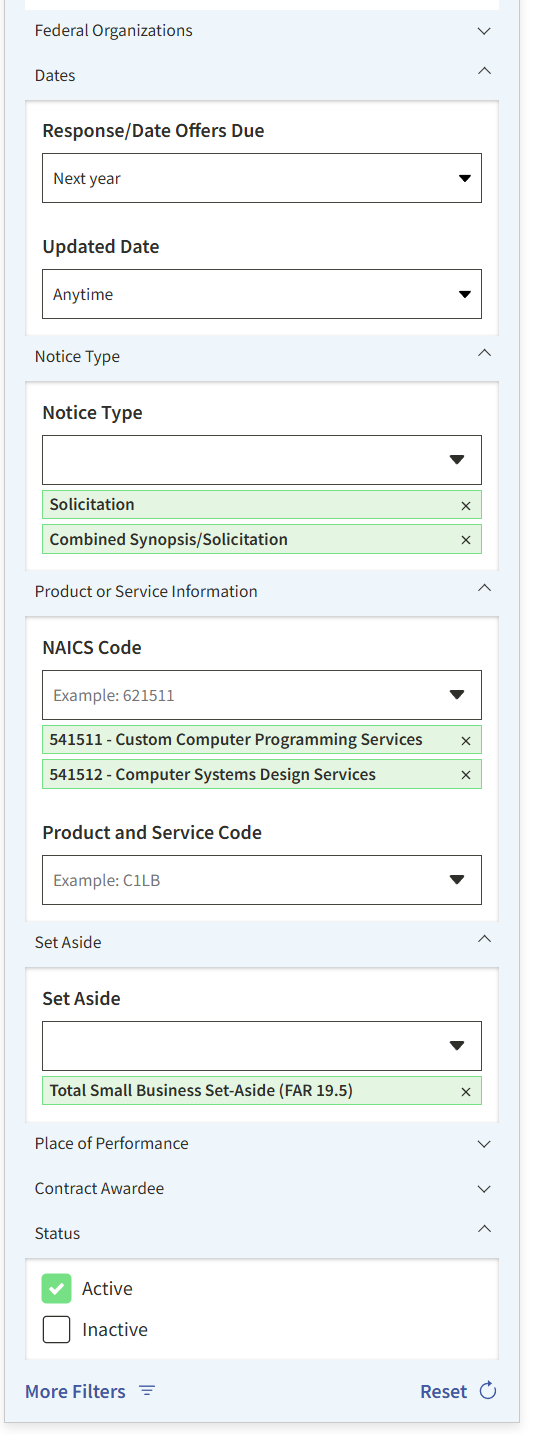
Set these Filters:
Response Date: Pick something into the future to clear out past due opportunities that haven't been made "Inactive" yet.
Notice Type: Skip the busy work and choose real live contracts. Create separate searches for "Sources Sought" opportunities.
NAICS Code: Run your search using the code/s you found in Step 2.
Set-Aside: Check the boxes for your socioeconomic certifications like WOSB, SDVOSB, or HUBZone. This immediately removes the "Full and Open" competitions where you would have to fight billion-dollar companies.
Pro Tip: Sort results by "Relevance" for best results.
Review the search results and you'll notice there are still random opportunities that don't make sense. Let's filter these out using the Search Editor.
Try these Common Filtering Keyword Patterns
These examples demonstrate how the "NOT" operator is profoundly powerful in finetuning your search results.
- "Quotes" keep phrases together in searches: See Example 1
- (Parentheses) group a list of keywords or phrases: See Example 3
- Capitalization matters NOT (vs not)
NOT "license"NOT "cyber security"NOT (licensing OR "license renewal" OR subscription OR SaaS)Tweak your filter until your results look mostly right. You'll save this search next, so you can always tweak it more later.
The Automated Search

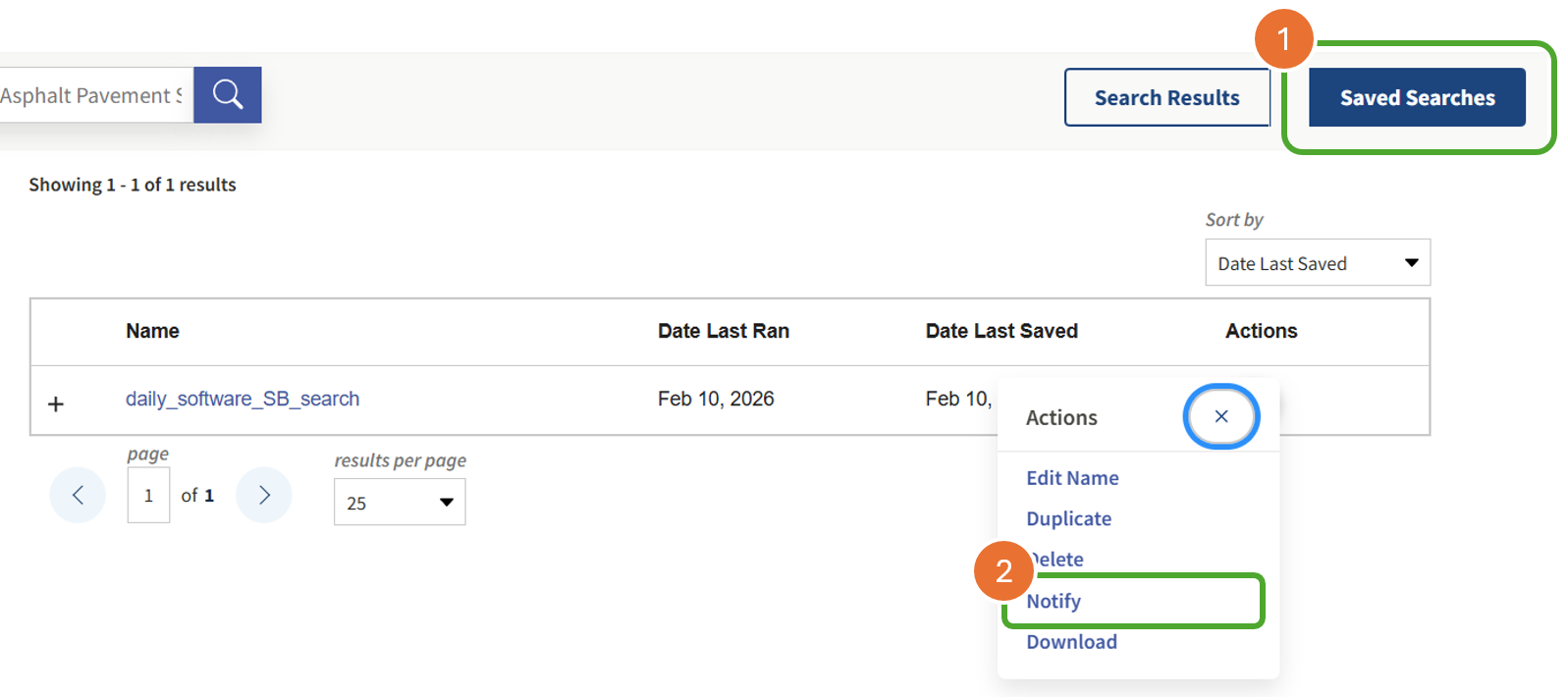
Now you've automated the SAM.gov search that works for you while you sleep. Every day, SAM.gov will email just your curated opportunities without all the noise.
Best Practice: Prioritized SAM.gov Searches
Sophisticated govcons set up multiple searches with different filters to prioritize their opportunities.
Have only a few minutes today? Check only the email labeled "Priority Search" and save the rest for later.
Now What? Meet The "Big Whammy" (The Decision Gap)
Great, you have your fresh opportunities. Now comes the part that actually kills small businesses.
Tomorrow morning, you'll wake up to an email with five "perfect" leads. But each lead comes with multiple 100+ page Solicitation documents. This is the "Decision Gap." Most small businesses fail here because they spend hours reading a document only to find a dealbreaker on page 112. Maybe it's a requirement for a Top Secret clearance or a specific past performance you don't have.
Most of the time, that dealbreaker isn't in the SOW at all. It's buried in Section L (what you must submit) or Section M (evaluation criteria). The government can disqualify you before anyone ever reads your Technical Approach.
Learn where to look first and you can spot those killers in minutes instead of hours. The mandatory RFP requirements that disqualify you before you start.
For a hunter, time is not just money. It is survival. Every hour spent reading a "No-Go" RFP is an hour stolen from a "Must-Win" proposal.
Spot Section L and M Killers in Five Minutes
Most dealbreakers are not in the SOW. They are in the instructions and evaluation criteria. Learn where to look so you stop wasting hours on bids you cannot win.
Read: Mandatory RFP RequirementsStop Reading. Start Swiping.
This is exactly why we built askaGOAT.ai. We sit on top of your free SAM.gov feed to bridge that gap.
We take those hundreds of pages of dense government-speak and turn them into a Hoofnote. This is a 60-second "Decision Brief" designed for the time-starved hunter.
The 60-Second "Hoofnote" Workflow:
- The Swipe: Instead of scrolling through PDFs, you get a condensed summary of the "Bid Killers."
- Instant Triage: Does the RFP require three past performances of $10M+? Next. Does it match your niche and your team size? Dig in.
- Surface the Vitals: We pull the Facility Clearance, Key Personnel, and Section M Evaluation Criteria to the front so you can decide in seconds, not hours.
The goal of business development is not to be good at searching SAM.gov. The goal is to make Go/No-Go decisions fast enough to win more work.
Set up your automated filters today. Then, let askaGOAT shred the results so you can focus on the one contract that changes the trajectory of your company.
Turn Your Daily Feed into a Decision Engine
You have the leads. Now get the answers. Upload your next solicitation to askaGOAT.ai and get a "Hoofnote" decision in 60 seconds. After you triage with a Hoofnote, use our capture management playbook to decide whether the juice is worth the squeeze.
Start Your Free TrialNo credit card necessary.