
SAM.gov search set up wrong costs you time either way: empty results or a flood of irrelevant notices. In eight minutes, set up a saved search and daily emails so only relevant contract notices reach you.
Whether you pay for a paid alert tool or use free SAM.gov with no saved search, discovery breaks the same way: too many irrelevant notices or hardly any matches. By law, opportunities post to SAM.gov. Many paid alert tools repackage that same public feed. You need SAM.gov set up correctly so only relevant contract notices reach your inbox.
SAM alert just hit. What would you do?
It is 4:30 PM on a Tuesday. A SAM.gov alert lands in your inbox (or you open Contract Opportunities hoping something new posted). You have about ten minutes between calls. You are the founder or one of two BD people. There is no capture shop waiting for a kickoff brief.
What do you do with discovery?
Option A: Live with the alert flood
Keep a broad keyword alert (or a paid tool that dumps the same public feed). Inbox fills with junk notices. You skim titles, miss the one that mattered, and burn the evening on noise.
Option B: No hits, then give up
Your search returns almost nothing for weeks. You assume "nothing is out there," stop checking, and miss awards that used a different NAICS or notice type than your guess.
Option C: Tuned saved search + Notify
Build a tight saved search on Contract Opportunities (NAICS, set-aside, Active, open response date), save it, and turn on Notify so only matching notices hit your inbox for free.
The correction: Option C wins. A and B fail for opposite reasons (too much junk, or too little signal). You do not need a paid alert product to fix this. Free native SAM.gov Saved Search plus Notify is the disciplined path. The rest of this guide is the eight-minute setup so C actually works.
Workflow at a glance: the 8-minute SAM setup
- Find your highest-probability NAICS codes from real award notices.
- Filter junk with advanced "NOT" operators.
- Save a Priority search and a broader Secondary net, then turn on Notify.
- Verify domain, Active status, open response date, and Notify before you trust the feed.
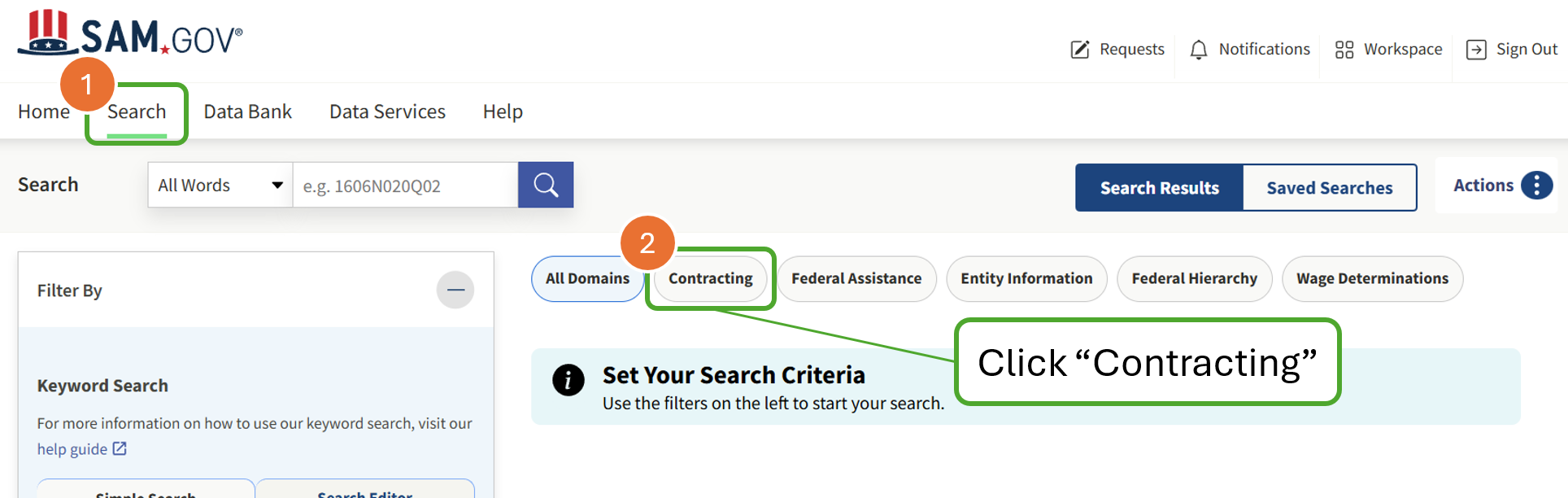
- Navigate to the SAM.gov Contract Opportunities search
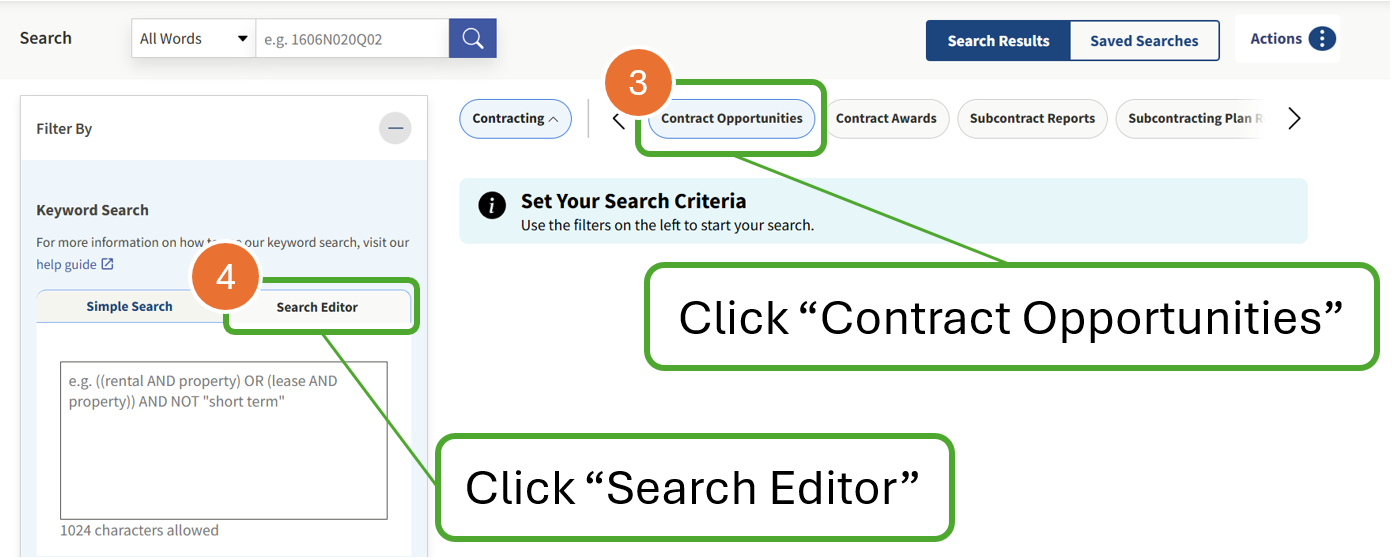
- Open the Search Editor and scope to Contract Opportunities
- Reverse-engineer award notices to find your NAICS Sweet Spot
- Confirm your NAICS codes against real awarded contracts
- Build your automated search with proven filters
- Save the search so it persists
- Turn on daily email alerts
- Copy two saved-search recipes (Priority + Secondary)
- Verification checklist
Back to Basics (of SAM.gov search)
Navigate to the Contract Opportunities search and we'll walk through everything you need to set it up for automation.
Remember, the SAM.gov search matches text across all text fields in an Opportunity. We'll also show you how to exclude keywords with the NOT operator to filter out poor contracts for bid.
1 Start at the SAM.gov Contract Opportunities search
2 Scope to "Contract Opportunities" and open the Search Editor
The "Reverse Search" (Stop Guessing)
Most contractors get stuck because they rely on keywords. Keywords are a trap. They are entirely dependent on whether a Contracting Officer chose the right words for a title that day. If an officer labels a cloud project as "Technical Support," your "Cloud Computing" keyword search will never see it.
The secret is to stop chasing keywords and start looking at your business identity: your NAICS Code. The North American Industry Classification System (NAICS) is how the government decides who is even allowed to play.
If you're not searching by NAICS, you're missing opportunities.
3 Find your Sweet Spot NAICS code by reverse-engineering award notices
Most businesses have five or six NAICS codes, but usually only one or two are the "Sweet Spot" where the money is actually moving. Here is how you find yours.
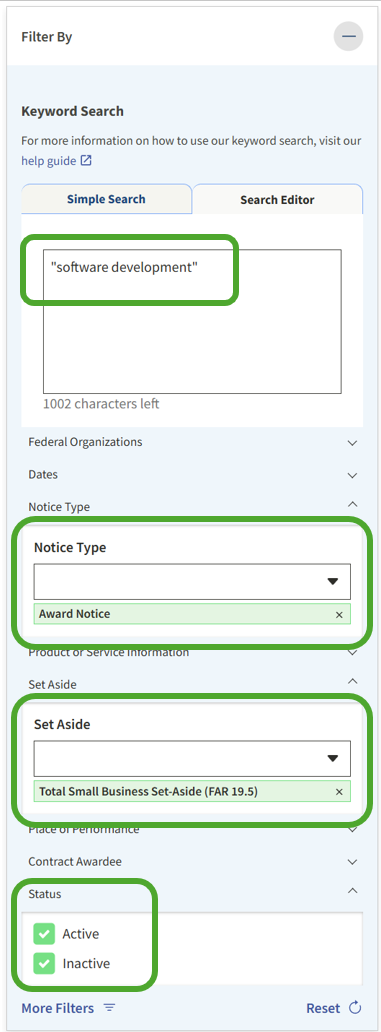
- Search for a project you have already won or one you really want to win.
- Filter your results by "Award Notices" only. This shows you real deals where the government actually spent money.
- Click on the most recent awards and look at the NAICS Code listed on the page.
You might find that while you registered under 541511 (Custom Programming), the contracts you want are actually being awarded under 541512 (Computer Systems Design). Add that higher-volume 541512 NAICS as your primary filter. Now you're looking exactly where the money is flowing.
Pro Tip: Check both "Active" and "Inactive" Status boxes. Sort Results by either "Relevance" or "Updated Date."
4 Confirm your NAICS codes by checking awarded contracts
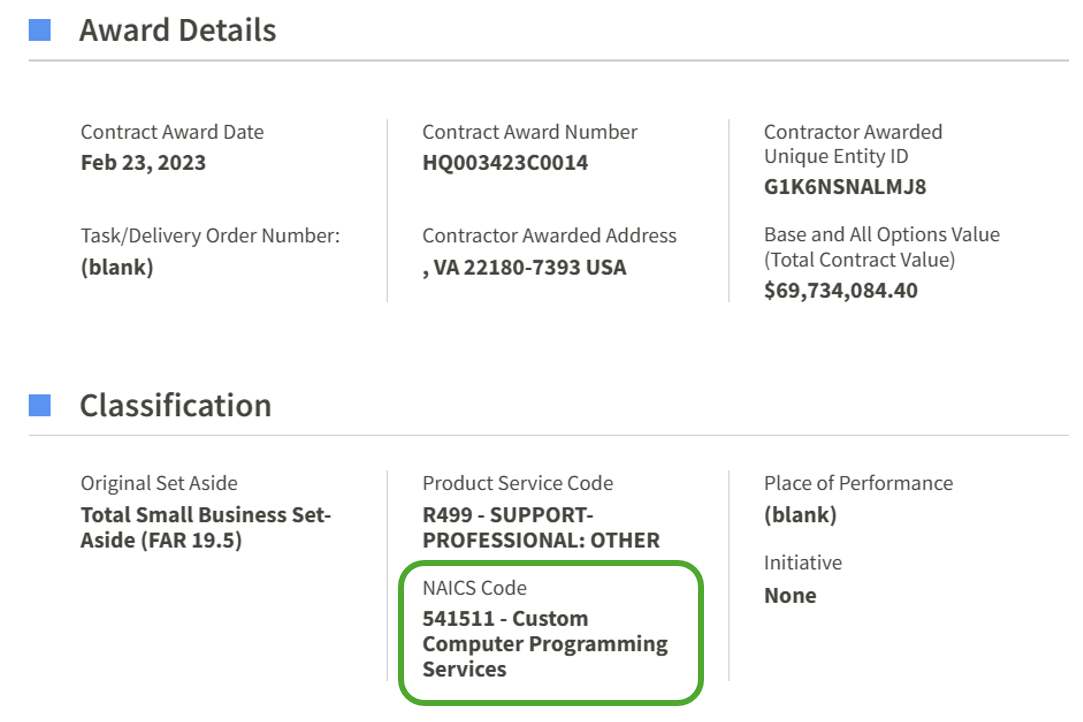
Rank your NAICS codes to prioritize your opportunity searches.
Set the "Tripwire" (The Autopilot Feed)
You do not have time to log in every day and run manual searches. Use the notification system already built into SAM.gov for free so matching notices come to you.
5 Build your automated search with these proven filters
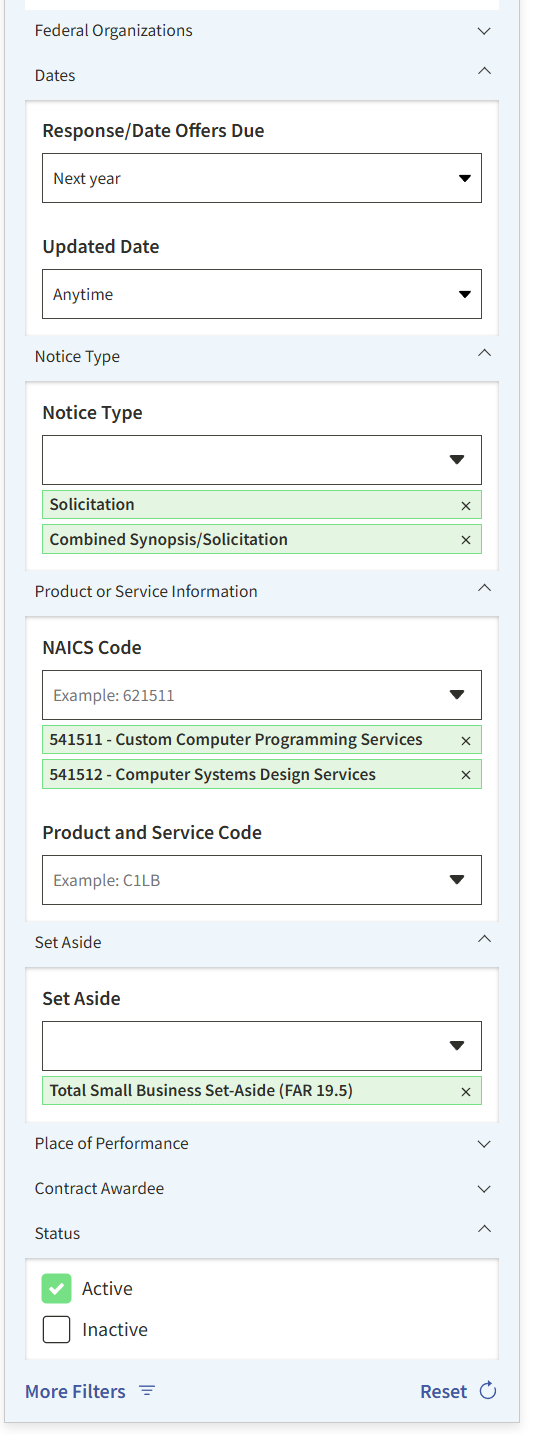
Set these Filters:
Response Date: Pick something into the future to clear out past due opportunities that haven't been made "Inactive" yet.
Notice Type: Skip the busy work and choose real live contracts. Create separate searches for "Sources Sought" opportunities.
NAICS Code: Run your search using the code/s you found in Step 3.
Set-Aside: Check the boxes for your socioeconomic certifications like WOSB, SDVOSB, or HUBZone. This immediately removes the "Full and Open" competitions where you would have to fight billion-dollar companies.
Pro Tip: Sort results by "Relevance" for best results.
Review the search results and you'll notice there are still random opportunities that don't make sense. Let's filter these out using the Search Editor.
Try these Common Filtering Keyword Patterns
These examples demonstrate how the "NOT" operator is profoundly powerful in finetuning your search results.
- "Quotes" keep phrases together in searches: See Example 1
- (Parentheses) group a list of keywords or phrases: See Example 3
- Capitalization matters NOT (vs not)
NOT "license"NOT "cyber security"NOT (licensing OR "license renewal" OR subscription OR SaaS)Tweak your filter until your results look mostly right. You'll save this search next, so you can always tweak it more later.
The Automated Search
6 Save your search

7 Turn on daily email alerts
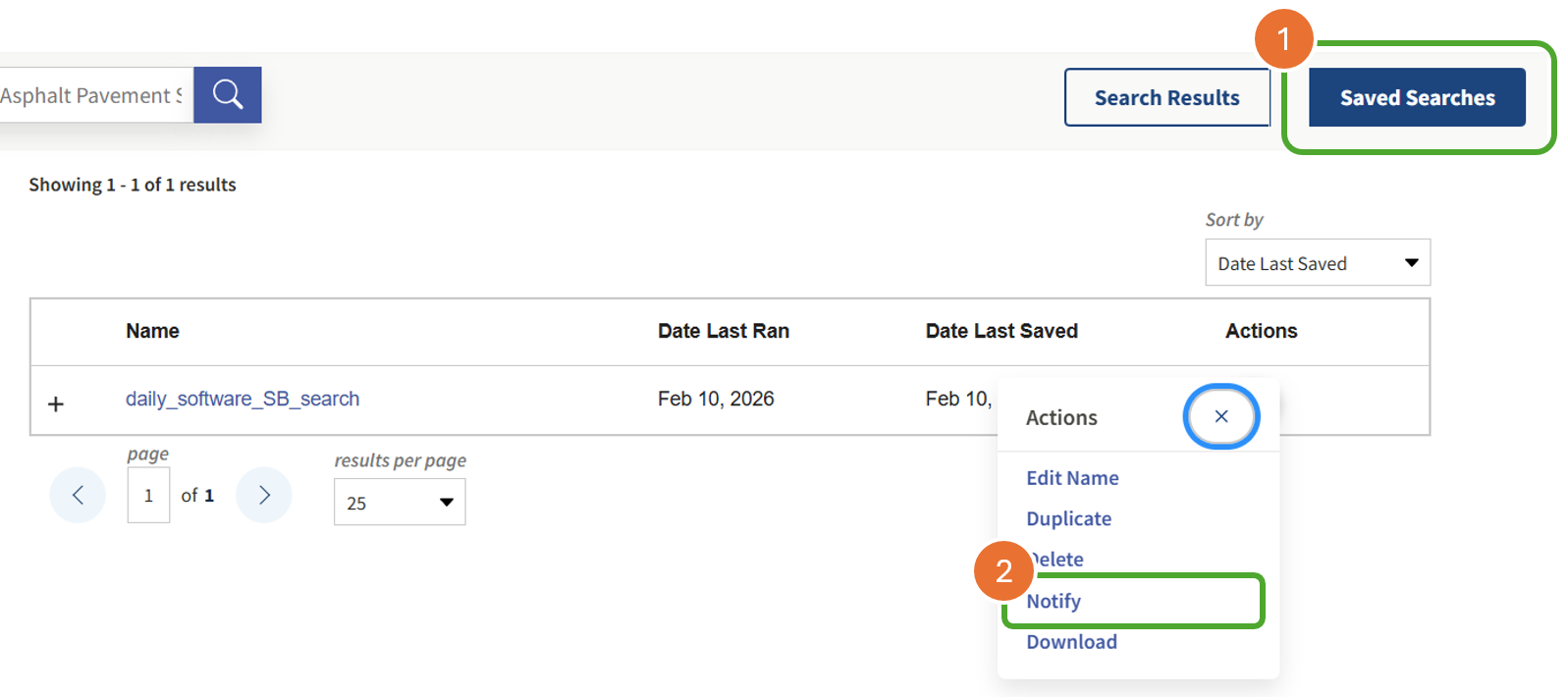
You have automated the SAM.gov search that works for you while you sleep. Every day, SAM.gov will email just your curated opportunities without all the noise.
Two saved-search recipes Sam can copy
One search is not enough when you only have ten minutes. Run two saved searches with Notify on. Check Priority first; skim Secondary only if you have time left.
Recipe 1: Priority (tight net)
Purpose: only high-probability notices that match your certifications and Sweet Spot NAICS. Name it something like Priority - 541512 SDVOSB so the email subject is obvious at 4:30 PM.
- Domain / search type: Contract Opportunities (not Entity Information, not Assistance Listings).
- Status: Active only (uncheck Inactive for the live feed).
- NAICS Code: your Sweet Spot from Steps 3 to 4 (example:
541512Computer Systems Design Services). - Set-Aside: only boxes you actually hold (example: SDVOSB, or WOSB, or HUBZone). Leave Full and Open off this search.
- Notice Type: Solicitation and Combined Synopsis/Solicitation (run Sources Sought as a separate search if you chase those).
- Response Date: from today forward (clears past-due notices still marked Active).
- Keywords (optional): phrase keepers plus NOT junk, for example:
"systems engineering" NOT (license OR subscription OR SaaS) - Notify: On after you Save (Step 7).
Recipe 2: Secondary (broader keyword net)
Purpose: catch notices that used a related NAICS or odd title language. Name it Secondary - keyword net. Read it after Priority, not before.
- Domain / search type: Contract Opportunities, Status Active, Response Date from today forward (same guardrails as Priority).
- NAICS Code: your next-best code or leave blank if you are keyword-led here (example: add
541511if Priority is 541512). - Set-Aside: optional. Include Full and Open only if you truly compete there; otherwise keep your certs checked.
- Notice Type: same live types as Priority, or add Sources Sought if that is how you find early work.
- Keywords (copy-paste starter):
("cloud" OR "DevSecOps" OR "software development") NOT (licensing OR "license renewal" OR training OR furniture) - Notify: On, separate from Priority so you can ignore Secondary on busy days.
Have only a few minutes today? Open the Priority email only. Secondary is the safety net, not the morning agenda.
Verification (non-negotiable)
Before you trust the feed (or chase a notice from an alert), confirm these on SAM.gov itself. Do not skip this because the email "looks right."
Human checks on every alert
- Domain: you are in Contract Opportunities, not a different SAM module that happens to share a keyword.
- Notice status: the opportunity is Active, not cancelled, archived, or superseded by a later notice.
- Response date: the due date is still open (timezone and "offers due" line on the notice page, not just the email subject).
- Saved search Notify: for each recipe you care about, Saved Searches shows Notify on. If Notify is off, you are back to manual login luck.
Now what? The Decision Gap
Great: you have a tuned feed dropping fresh opportunities into your inbox. Find is working. Now comes the part that burns a small team.
Tomorrow morning you may get five links. Each one opens a massive RFP document package: zip files with Statements of Work, Section L instructions, Section M evaluation criteria, and a pile of attachments.
This is the Decision Gap. Sam fails here by opening Section C first, spending hours on scope fit, then finding a showstopper on page 112 (Top Secret clearance, a past performance profile you cannot meet, a portal or cert gate you fail). The government can disqualify you before anyone reads your Technical Approach.
When your alert fires, protect the next hour: run hard gates before the SOW. Use mandatory RFP requirements (Outside-In / Sections L, M, H) to log clearance, set-aside, certs, and submission showstoppers with cites. Then use eligibility triage if set-aside or certification fit is still unclear. Only after gates clear (or you accept a priced risk with eyes open) dig into scope.
The expensive manual path
You spend five hours reading every Section L and M PDF. You miss a hidden hard gate and bid anyway. You burn B&P on a no-bid you could have killed in minutes.
Stop reading every page. Start triaging hard gates.
This is why we built askaGOAT: the Decide layer that sits downstream of your SAM.gov feed. Same hard-gate discipline you just used by hand, applied across the whole package so you are not copy-pasting slices into a chat tool between calls.
When your feed finds an opportunity, upload the RFP package. We turn hundreds of pages of dense government-speak into a 1-page Hoofnote so you can Go/No-Go on mandatory checkpoints before you sink a day into the SOW.
This is a Hoofnote. A 1-page Go/No-Go brief designed for rapid RFP triage. It exposes RFP "Mandatory Checkpoints" and "Proposal Workload" instantly.

The 60-Second "Hoofnote" Workflow:
- The Swipe: Instead of manually reading PDFs, you get an immediate summary of the "Bid Killers."
- Instant Triage: Does the RFP require three past performances of $10M+? Next. Does it match your niche and your team size? Dig in.
- Surface the Vitals: We pull the Facility Clearance, Key Personnel, and Section M Evaluation Criteria to the front so you can decide in seconds, not hours.
The point of Find is not a perfect SAM hobby. It is enough clean alerts that you can spend minutes on hard gates instead of hours on a No-Go package. Every hour reading a dead RFP is an hour stolen from a Must-Win.
Finish the free SAM setup and Verification above. Then, when an alert clears your Priority net, let askaGOAT run the same Outside-In triage across the full document package so you decide before the SOW eats your evening.
Your Feed Finds the Leads. We Qualify the Documents.
You have the leads. Now get the answers. Upload your next massive RFP package to askaGOAT and get a "Hoofnote" decision in 60 seconds.
See Your First HoofnoteNo credit card necessary. Full trial access.